Getting Started
Onboard Your MCP Server
This guide helps developers register their MCP server on the Webex Developer Portal. For A2A (Agent2Agent) Agentic Apps, see Onboard Your Agent.
anchorPrerequisites
anchorBefore starting, ensure you have:
- Access to the Webex Developer Portal.
- A deployed MCP server reachable via HTTPS.
- Decide which authentication methods your app will offer. For methods that require credentials or configuration, have those values ready. Webex Service App does not require you to enter a client ID, client secret, or token. You can select one or more of the following methods:
- OAuth 2.0 authorization code – User-level OAuth flow where each user authenticates and grants access individually.
- OAuth 2.0 client credentials – Organization-level OAuth flow using a single set of client credentials on behalf of the organization.
- API key – A single static key issued at the organization level to identify and authorize requests.
- User token – An individual token representing a specific user's identity and session.
- Custom header authentication – Custom authentication headers that can be configured at the organization or user level.
- Webex Service App – Organization-level machine authentication for eligible Webex-hosted MCP servers.
anchorStep-by-Step Registration Process
anchor1. Navigate to the Webex Developer Portal
Open https://developer.webex.com in your browser.
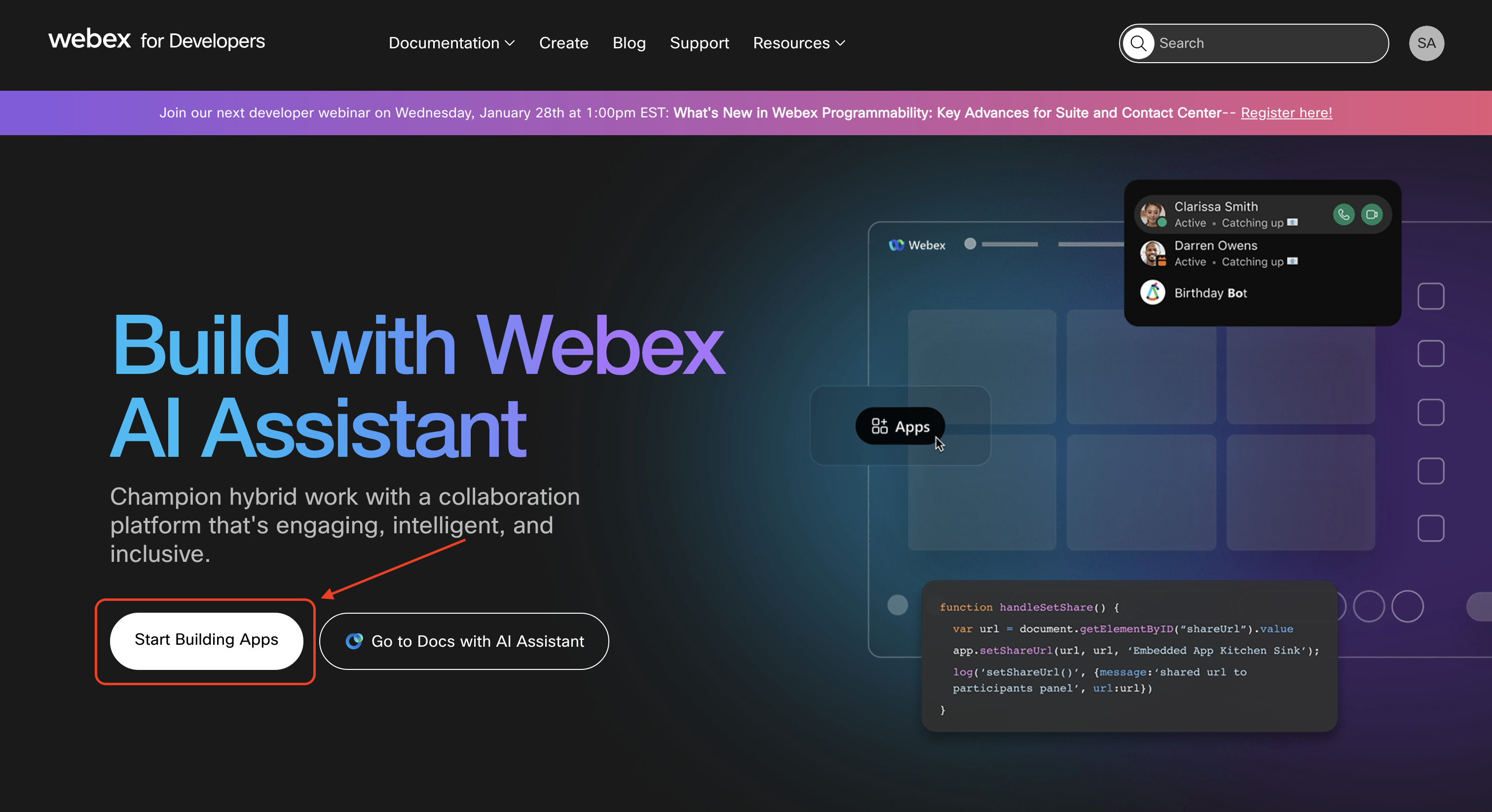
2. Click Start Building Apps
On the home page, click Start Building Apps to access the app creation interface.
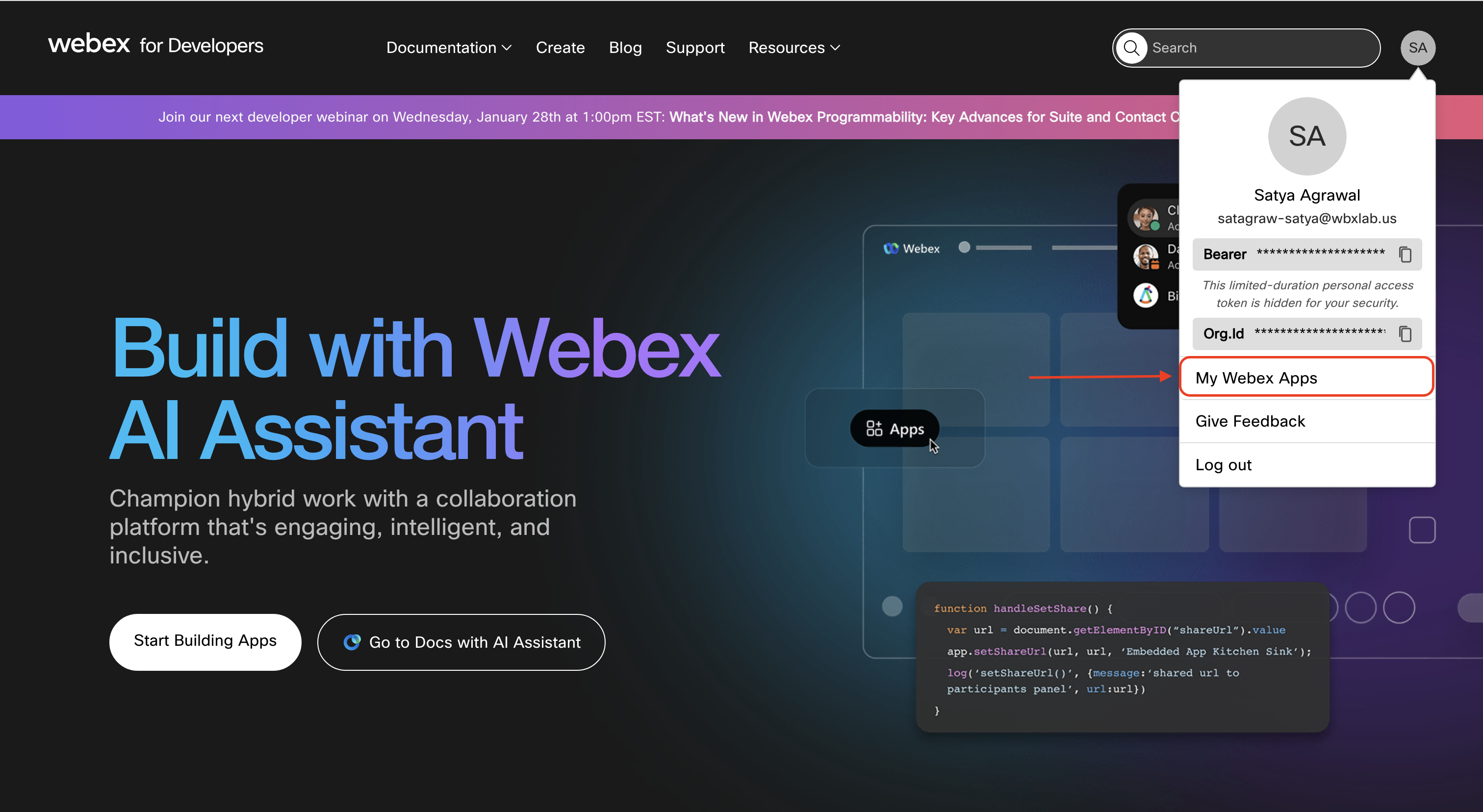
Alternatively, you can click on your profile, select My Webex Apps from the dropdown and click on Create a New App on the My Apps page that appears (you will directly be taken to the app creation interface if you don't have any pre-existing apps).

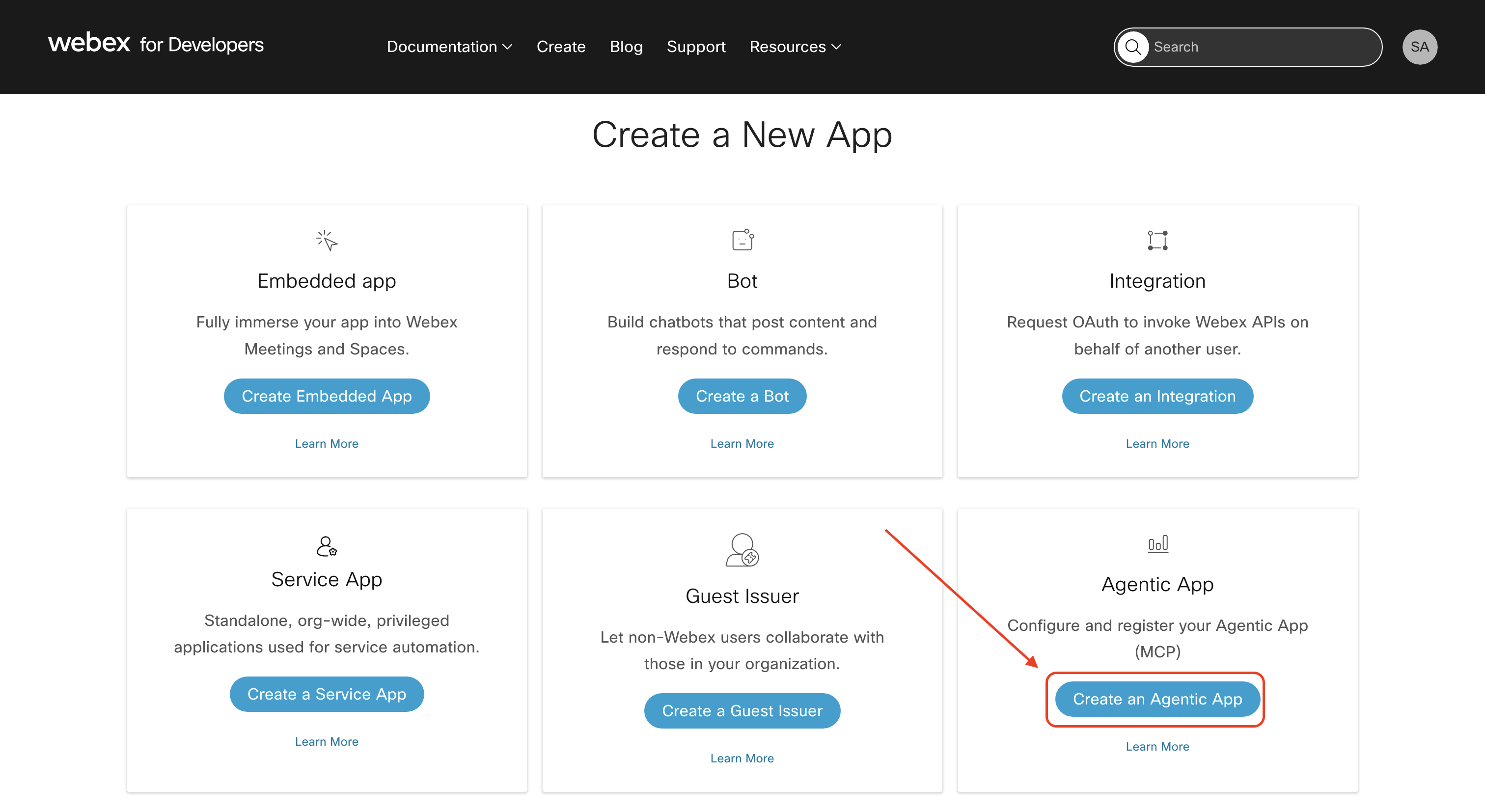
3. Select Create an Agentic App
From the Create a New App page, click Create an Agentic App to begin the agentic app registration.
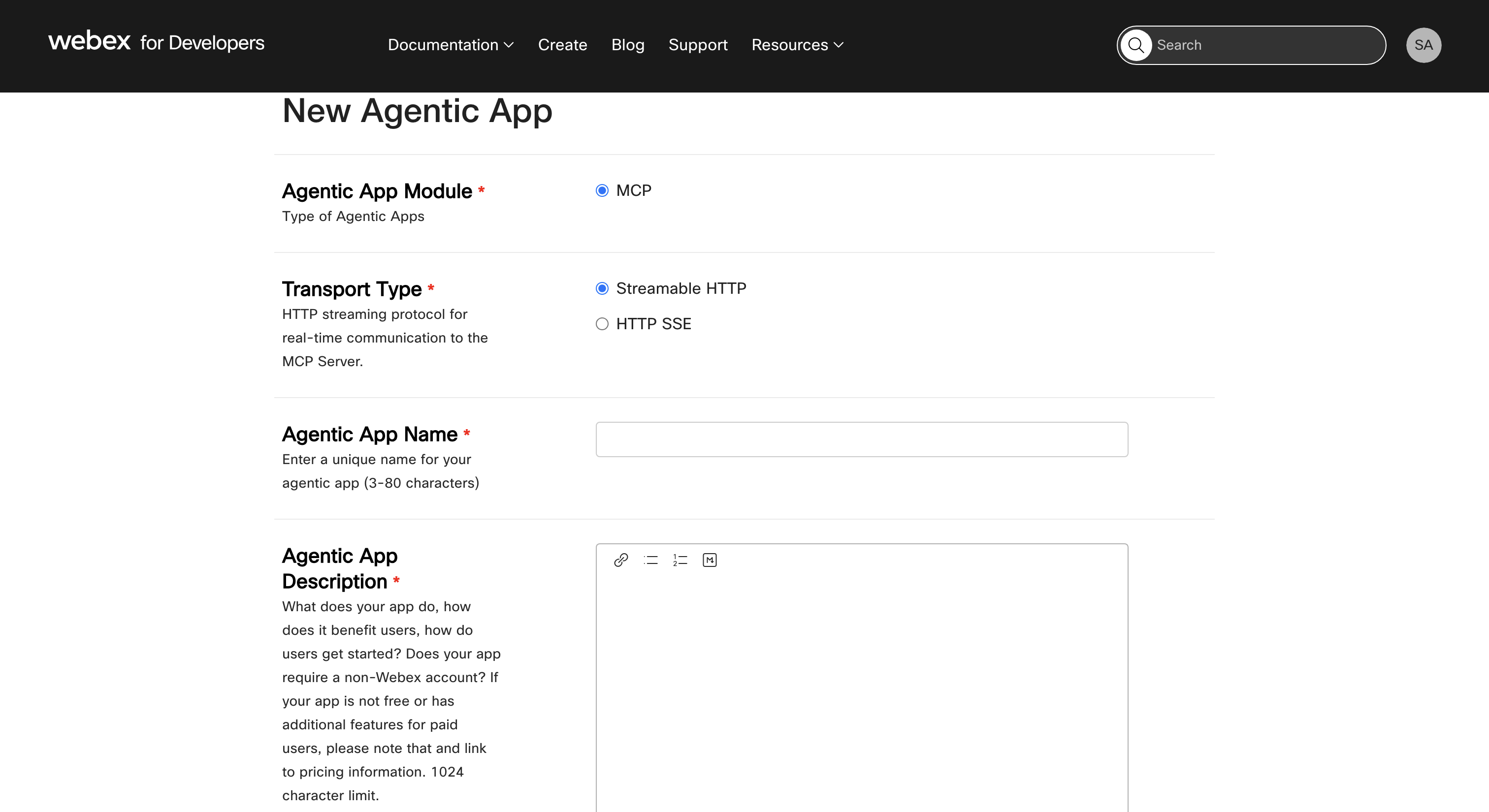
4. Enter App Details
Fill in the following fields:
- Module: Select
MCP(A2A coming soon). - Transport Type: Select
Streamable HTTPorHTTP SSE. - Name: Unique name for your app.
- Description: Clear description of its purpose.
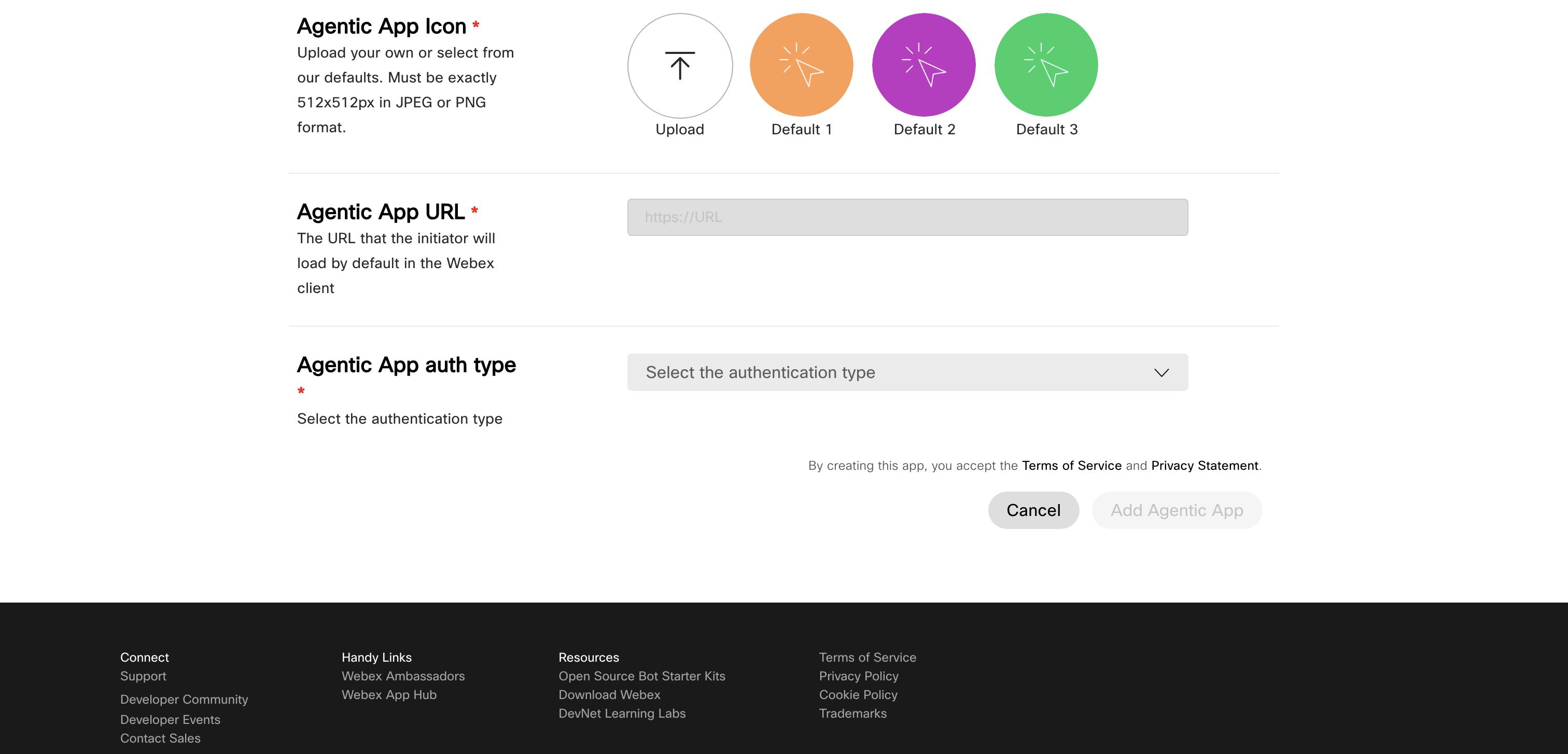
- Logo: Upload a 512x512 PNG/JPEG (or select from 3 default options).
- App URL: Public HTTPS endpoint.
- Authentication types: Select one or more methods available for your MCP server:
- OAuth 2.0 client credentials
- OAuth 2.0 authorization code
- API key
- User token
- Custom headers
- Webex Service App (eligible Webex-hosted MCP servers only)
Webex Service App authentication
For an eligible Webex-hosted MCP server, select Webex Service App to use an organization-level machine identity. The option appears only after you enter an eligible MCP server URL.
You don't enter a client ID, client secret, or access token. The app details page displays the Associated Webex Service App ID after provisioning succeeds.
Each customer organization authorizes the Service App separately. In Control Hub, a Full Administrator opens Apps > Agentic Apps, selects the MCP server, and opens the Authentication tab. The administrator selects Webex Service App as the active authentication method and uses the Service Apps page link to review the associated app and its requested scopes. See Webex Service App authentication in Control Hub for this flow and Full Admin Authorization of a Service App for the separate authorization step. If the requested scopes change later, a Full Administrator must review and reauthorize the updated scopes.
5. Click Add Agentic App
After completing all fields, click on the Add Agentic App button at the bottom of the registration page. The system will register your app and redirect you to the details page.
The details page can also be accessed by going to the My Apps page and selecting the app you registered.

anchorManaging Your Agentic App
anchorFrom the details page, you can:
- View the app ID, configuration, and associated Service App ID, when applicable.
- Edit the name, description, URL, transport type, or authentication methods.
- Submit a request to make the app public on the Webex App Hub.
- Request admin approval for org/user level use.
- Delete the app.